Two-way, always on
Edits on your computer are picked up within seconds. Changes made in Drive, on the web or on your phone, arrive within about two minutes.
Private beta: October–NovemberOct–Nov 2026
Ambifold is a background app for Linux that keeps the folders you choose in two‑way sync with Google Drive. It shows you what it will do before the first sync, stops before mass deletes, and keeps a backup of the files it replaces or deletes on your computer.
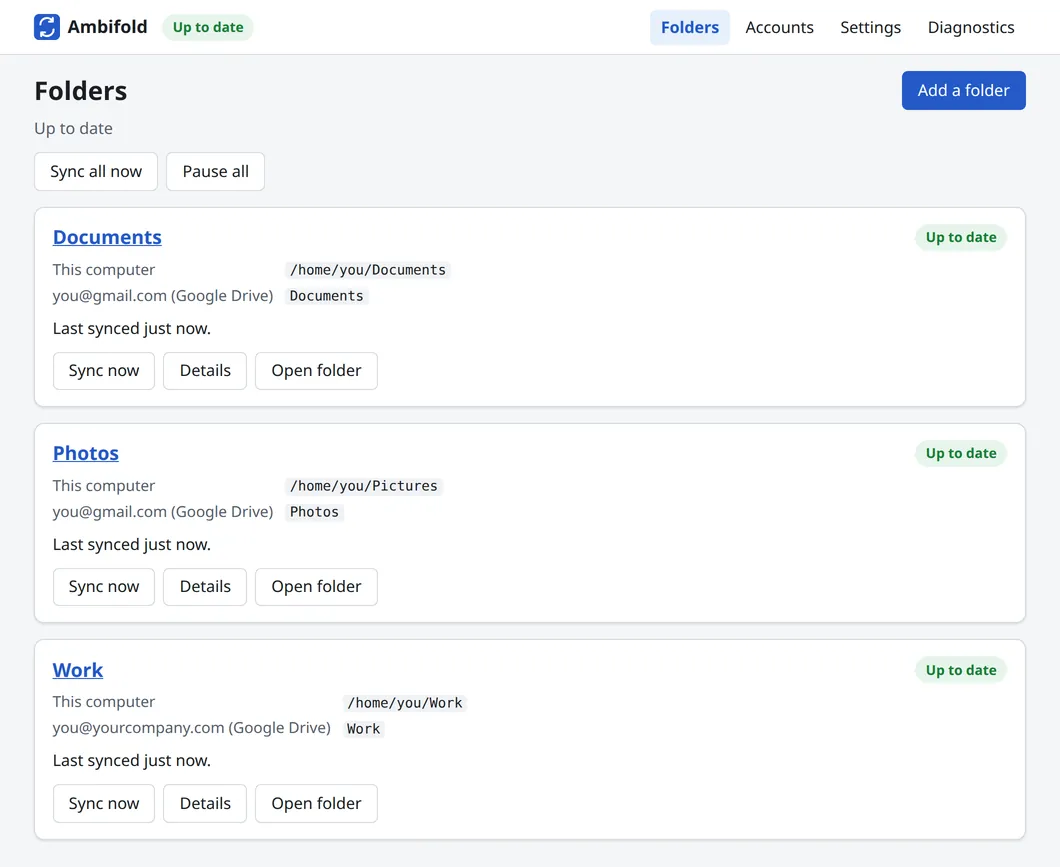
The settings page runs on your own computer and opens in your usual browser. Screenshot of the current pre-release.
Why now
Google has never made a Drive app for Linux. For years the desktop filled the gap: sign in once, and your Drive showed up in the file manager. That is going away.
GNOME 50, the desktop of Ubuntu 26.04 LTS, no longer opens Google Drive in Files: the library behind it went unmaintained, and GVfs, the layer that file managers use for online storage, stopped using it. Linux Mint 23, expected around December 2026, is built on Ubuntu 26.04, and its file manager relies on the same layer, so Mint users are expected to lose it too.
Ambifold is a different approach. Instead of browsing Drive over the network, it keeps real copies of your chosen folders on your disk, so files open instantly, work offline, and sync both ways in the background.
How it works
Ambifold lives in your tray and keeps working in the background. Its settings page opens in your browser whenever you need it.
The free edition guides you through creating your own Google sign-in client: a one-time setup of about ten minutes. Add more accounts the same way, personal and work side by side (if your organisation allows it).
Choose a folder on your computer and a folder in your Drive. Add as many pairs as you like, for example Documents, Photos and Work.
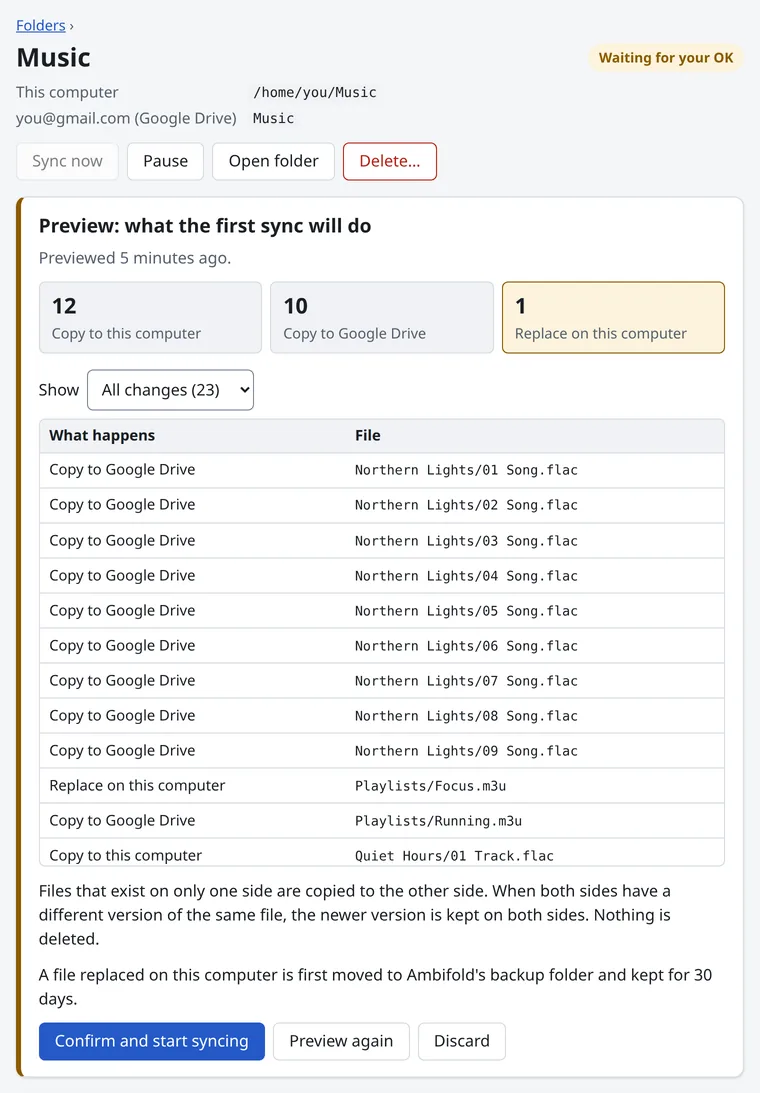
Ambifold shows what the first sync will copy in each direction. Nothing happens until you confirm. From then on, both sides stay in sync on their own.
Features
Edits on your computer are picked up within seconds. Changes made in Drive, on the web or on your phone, arrive within about two minutes.
Not a network mount: your synced files are ordinary local files. They open instantly, work offline, and every app can use them.
Connect personal and work accounts at the same time, each with its own folder pairs. Work and school accounts need their administrator to allow apps like this one.
See the status at a glance, open any synced folder, sync everything now, or pause and resume, straight from the tray icon.
If a file changed on both sides, the newer version wins by default and the other is kept next to it with “conflict” and a number in its name.
Your files go straight between your computer and Google. There is no Ambifold server, no account with us, and no analytics. The settings page is reachable only from your own computer.
Safety
Two-way sync is powerful, and a mistake travels fast. Ambifold checks with you before big changes and leaves you a way to get files back.
Status and limits
Ambifold works end to end on the developer's own computer and has a large automated test suite, but it has not been in other people's hands yet. That is what the beta is for.
A private beta for Linux Mint and Ubuntu users is planned for October and November 2026. Please keep your usual backups while you try it.
Linux Mint and Ubuntu come first (Cinnamon and GNOME). Windows is planned for later. There is no macOS version, and none is planned yet.
Changes made in Drive reach your computer within about two minutes, because Ambifold checks Drive on a schedule. A faster change feed is in the works. Changes on your computer are picked up within seconds.
By default these stay in Drive and are skipped: they are not regular files, and Google only offers converted copies (such as .docx) without version history, sharing or live editing together. You can turn on those copies in the settings, but editing one can replace the original Google document with a plain file. Everything else, such as PDFs, photos and office files, syncs normally.
Folders in your own Drive can be synced. Shared drives and “Shared with me” are not supported yet.
If your organisation's Google Workspace administrator restricts third-party apps, or your account uses Advanced Protection, Google may block the sign-in.
The free edition needs your own Google sign-in client. The app walks you through it step by step; it takes about ten minutes, once. Because the client is yours and unverified, Google shows a warning screen during sign-in, which the guide explains.
The tray icon needs a panel that shows app indicators: Cinnamon does, and so does Ubuntu's GNOME. Without one, Ambifold opens its settings page instead.
FAQ
There will always be a free edition, with the full sync features. It asks you to create your own Google sign-in client, a one-time setup of about ten minutes that the app guides you through.
Later, we plan a paid “Connect” plan that replaces that setup with a one-click Google sign-in. It depends on Google verifying Ambifold, which takes time, so it is not available yet. The beta is free.
To sync any folder you choose, Ambifold needs full access to your Google Drive. Google lets a public app ask for that only after a lengthy security review. The free edition avoids that by connecting through a client that you create in your own Google Cloud project, which Google allows for personal use. The client and its keys stay with you, on your computer. The planned Connect plan will use Ambifold's own client instead, once Google has verified it.
Ambifold asks Google for access to your Google Drive files (Google's sign-in screen calls it “See, edit, create, and delete all of your Google Drive files”), and it reads your account's name and email address to label the account in the app.
It uses that access only for what you set up: to show your Drive folders when you pick one, and to download, upload, update and delete files so that each folder pair stays the same on both sides. When a sync deletes a file in your Drive, the file goes to Drive's trash. All of this happens on your computer; nothing is sent to us. The privacy policy has the details.
No. Ambifold has no server. Your files and your Google sign-in go directly between your computer and Google, and the app sends nothing to us or to anyone else: no analytics, no telemetry, no crash reports. You do not need an account with us. Your files stay between your computer and your Google account.
The settings page runs on your computer at 127.0.0.1. It needs a one-time key that the tray icon hands to your browser, and it refuses requests from other websites and from other users of the same computer. Read the privacy policy for the details.
Windows is planned after the Linux beta. There is no macOS version, and none is planned yet. If you use Windows, choose it in the signup form and we will let you know when it is ready.
It will be. Ambifold will be released as open source under the Mozilla Public License 2.0. The code is private while the beta takes shape, and will be published later.
All three are good tools, and one of them is inside Ambifold. The difference is focus:
Compared with mounting Drive as a network folder (as the file manager did, or rclone mount), Ambifold keeps real local copies, so your files work offline and open instantly.
Ambifold is designed for exactly that, with a preview before the first sync, a stop before mass deletes, backups of replaced files on your computer, and Drive's own trash on the other side. It is still pre-release software, though, so start with one folder and keep your usual backups during the beta.
The beta targets Linux Mint and Ubuntu, with the Cinnamon and GNOME desktops, including encrypted home folders. Other distributions may well work, but they are not tested yet. Tell us yours in the signup form: it helps us decide what to test next.
Private beta
We are inviting a small group of Linux Mint and Ubuntu users in October and November 2026. Leave your email and we will send you an invite when there is a spot.